Repair and cleanup
Reducing dynamic range (Compressor / Limiter)
Even out the quiet and loud parts of a track with the Compressor, and stop peaks clipping with the Limiter.
A high dynamic range can lead to quiet parts of a track being too quiet compared to its loud parts, causing the listener to constantly adjust the volume to keep things at an acceptable level. Audacity has several tools to help reduce the dynamic range and increase the loudness of a track.
Compressor
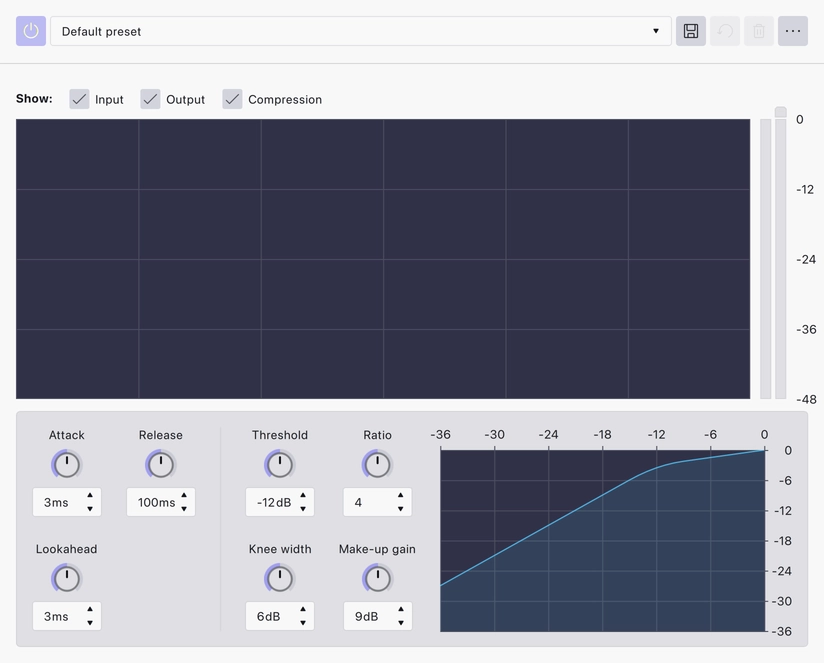
Add it as a realtime effect from the track’s Effects button → Add effect → Compressor, or apply it to the selected audio from Effect → Volume and compression → Compressor. The Compressor page describes each control.
The compressor can be used to reduce the dynamic range by a certain ratio for all sounds that exceed the threshold. Doing so will make the resulting audio quieter, so you need to add make-up gain to make up for that, or, alternatively, normalize your track in a second step. The knee width and smoothing parameters are there to reduce distortion.
Limiter
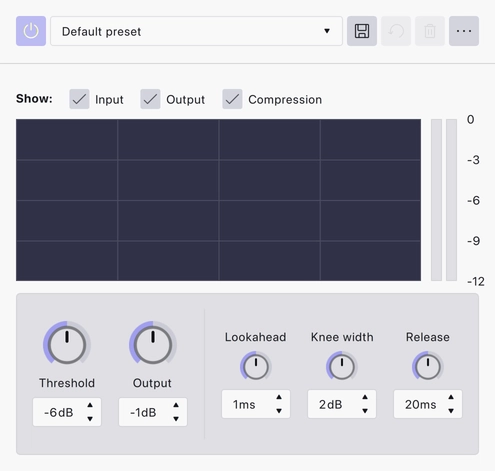
A limiter is effectively identical to a compressor, with the difference that it’s much harsher: while a compressor uses a low ratio and may let a sound exceed the line drawn on the curve temporarily, a limiter does not allow any sound to exceed the threshold. The Limiter page describes its controls.
Plugins for this
Audacity’s Compressor and Limiter cover most material. For a different character, a multiband compressor or a loudness-matching limiter, MuseHub has third-party dynamics plugins that run as realtime effects in the same way.
Last updated