First steps
Save your project
Keep the editable .aup4 project file so you can come back and change your edits.
Audacity 4 saves projects to your computer, or to the cloud.
A project is an .aup4 file holding your tracks, clips, edits and undo
history. Only Audacity can open it: reopen the project and you can still
untrim clips or adjust realtime effects, weeks later.
Save to your computer
Save with
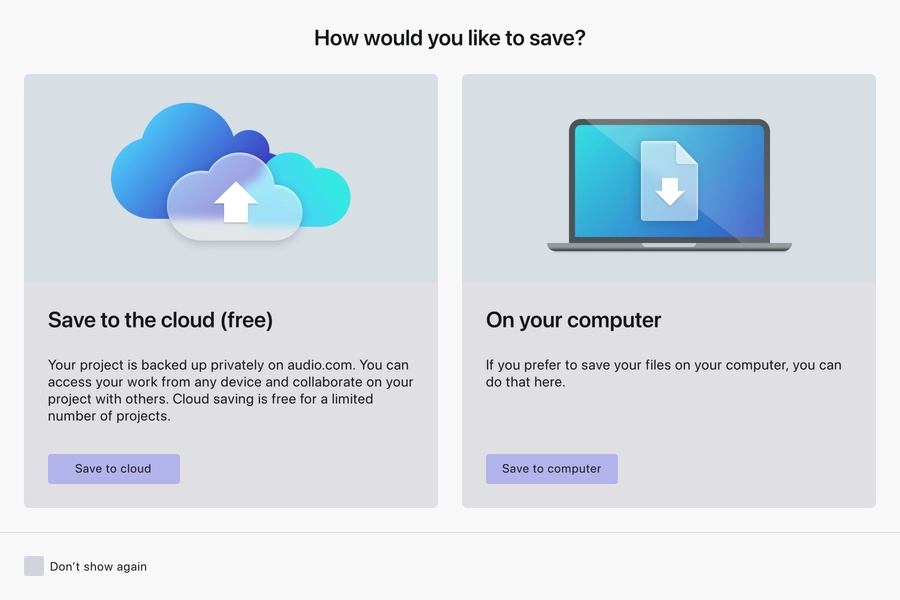
Choose Save to computer, then a name and a folder, and the project is an
.aup4 file on your own drive. Every save after that goes straight to the
same file.
Finding your projects again
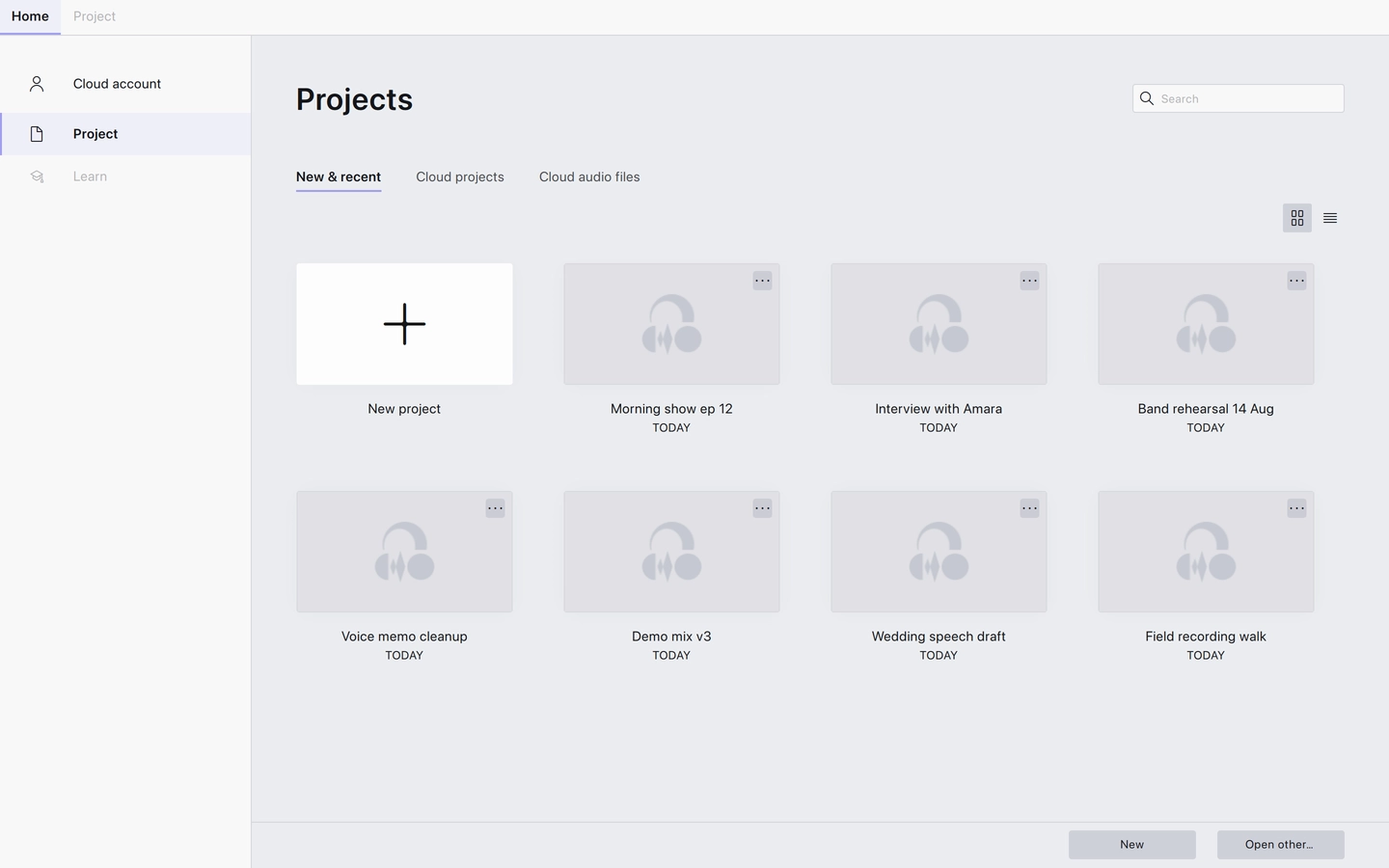
Saved projects appear on the Home tab, so you can reopen one without going looking for the file.
Save to the cloud
Save to cloud stores the project on audio.com instead, which is useful for collaborating or working across machines. It requires an audio.com account and an internet connection.
Choosing it asks for a project name.
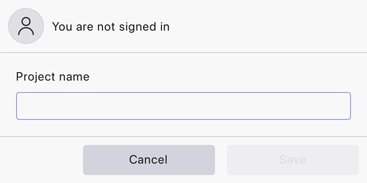
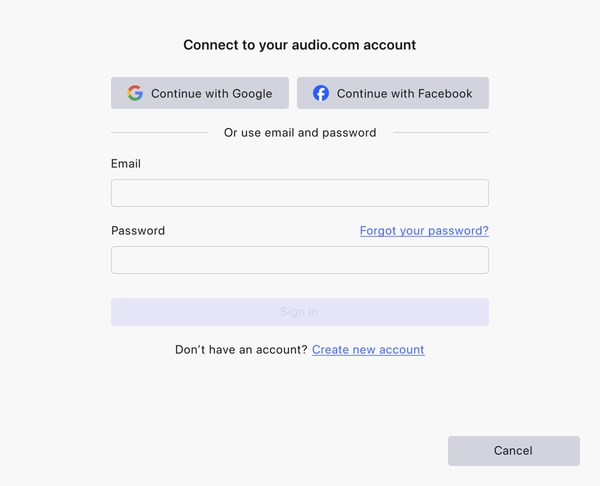
Press Save, and if you are not signed in, Audacity asks you to connect your account: sign in with Google, Facebook, or an email and password, or create a new account.
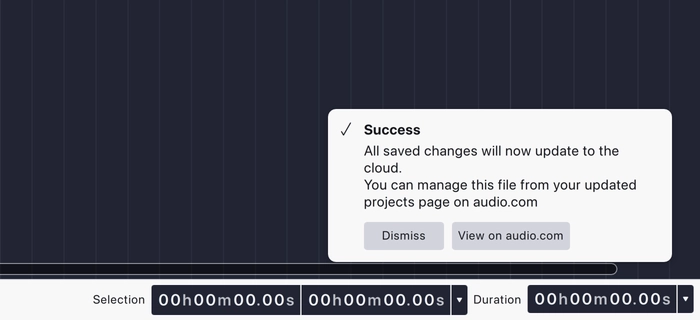
The upload happens in the background while you keep working, and a notification confirms when the project is on audio.com. Cloud projects are backed up and versioned, and they are easy to share with collaborators.
Cloud projects appear on the Home tab with everything else under New & recent, and on their own under Cloud projects.
When the edit is finished, the other half of the story is to export your audio.
Last updated