Coming from Audacity 3?
Audacity 3 to 4 transition guide
Audacity 4 keeps the ideas and moves some furniture. This page maps the differences for Audacity 3 users — what moved, what changed, and how to make it feel like home.
Audacity 4 modernises the interface without changing what Audacity is. Your projects open, your instincts mostly carry over, and where they don’t, this page is the map. The changes that matter most: clips are now first-class things you select and manipulate directly, effects can run live instead of rewriting your audio, and the old tool modes have been slimmed down.
Make it look like home
The first time you run Audacity 4 it asks for an app theme, a clip theme and a workspace. Choosing the Classic clip theme and the Classic workspace keeps things as close to Audacity 3 as possible — the same tools and buttons, in familiar places. Nothing is locked in: both can be changed later, the workspace from the selector in the top bar and the rest in Preferences.
Your projects come with you
Audacity 4 saves projects as .aup4, and it opens the .aup3 projects you
made in Audacity 3 — your old work carries straight over. Saving is
otherwise the same split you know:
save the project to keep
editing, export to get an audio file.
Clips are first-class now
Clips can be selected directly: click one, or Shift+click several — they no longer need to be touching. A selected clip grows handles at its edges, and whatever you do with them — trimming, stretching — applies to every selected clip at once.
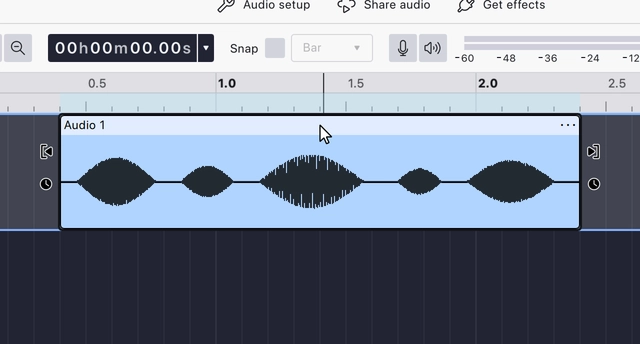
One behaviour worth knowing before it surprises you: moving a clip onto another clip is allowed, and the clip underneath is eaten into where they overlap.
Effects can run live
The Effect menu still works the way it always has: select audio, apply, waveform changes. What is new is that effects can also run as realtime effects — stacked on a track, calculated during playback, adjustable or removable at any point — and as master effects on the finished mix. Nothing is written into your audio until export. Apply your first effect covers both ways in.
Tool modes, slimmed down
The old mode switch is gone: no more Select
- Envelopes are a visual layer now, toggled with the Automation button, rather than a mode you switch into.
- Draw engages itself: zoom in far enough to see individual samples and the cursor becomes a pencil near a sample point.
- Split is new — press or hold
S and click to cut a clip in two.
Sync-Lock became ripple editing
Sync-Lock is gone; keeping tracks aligned is now part of how deleting and inserting work. The first delete asks for your default behaviour (changeable in Preferences → Editing), and the sync-preserving forms live on the keyboard: Delete and close gap (all tracks),
Knobs
Some controls that were sliders are knobs now. Drag up or right to increase, down or left to decrease; double-click resets, and holding Shift while dragging gives finer control.
Plugins
Supported formats today: VST3, VST, LV2, LADSPA and, on macOS, Audio Units. Nyquist and VAMP plugins from Audacity 3 are not supported yet, and newer formats like CLAP may come later.
The keyboard, in full
Most shortcuts survived the move, but not all — the keyboard shortcuts reference is generated from Audacity 4 itself, so when your fingers disagree with the app, it settles the argument.
Last updated