Clips
Grouping
Grouped clips select, move and edit as one.
Clips can be grouped so they behave as one: selecting any clip in a group selects them all, and moving, copying, pasting or duplicating keeps the group together. Grouping is how a take that spans several tracks stays in sync while it is edited.
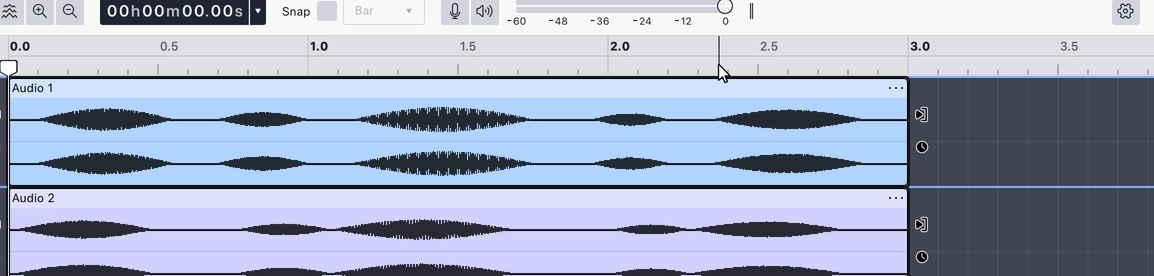
Grouping and ungrouping
Select the clips, then choose Group clips: it is in the Clip menu, and in the context menu when right-clicking one of the selected clips. Selecting clips across tracks is done by holding Cmd and clicking each one; see Selecting and moving.
Ungroup clips dissolves the group, and the clips go back to selecting and moving independently. Neither command changes the audio.
Last updated