Workspaces
Workspaces
Named configurations of the interface, switched from the dropdown in the top right corner.
A workspace is a named configuration of the interface: which buttons the Tools toolbar carries, how the window is laid out, and, for Music, which format the timeline ruler uses. Switching workspaces changes the layout, not the project.
Workspaces do not carry global appearance settings: the theme, accent colour and waveform display options stay the same whichever workspace is active.
Switching workspace
The Workspace dropdown sits in the top right corner of the window; the same list is in View → Workspaces. The first-launch setup also offers a choice of starting workspace.
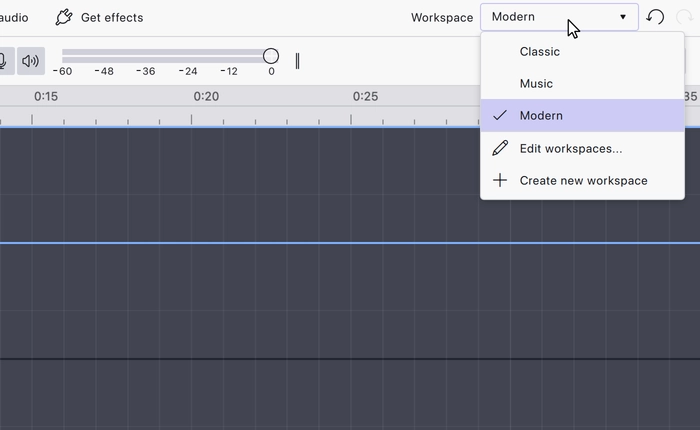
The built-in workspaces
- Modern: the default. A pared-back toolbar for recording, playing and looking around.
- Classic: every editing button in the toolbar, laid out for Audacity 3 habits.
- Music: beats and measures on the ruler, with tempo and time signature in the toolbar.
Your own workspaces
The layout in front of you can be saved as a workspace of your own, and managed afterwards: see Creating new workspaces and Edit workspaces.
- Modern The default workspace — a pared-back toolbar with the level meters in a side panel.
- Classic Every editing button in the toolbar, laid out for Audacity 3 habits.
- Music A workspace for tempo-based work — beats and measures on the ruler, with tempo and time signature in the toolbar.
- Creating New Workspaces Arrange the window the way you want it, then save that arrangement as your own workspace.
- Edit Workspaces The Edit workspaces window — switch, rename, reset and remove workspaces.
Last updated