Effects
Change Pitch
Shift the pitch of the selection without changing how long it lasts.
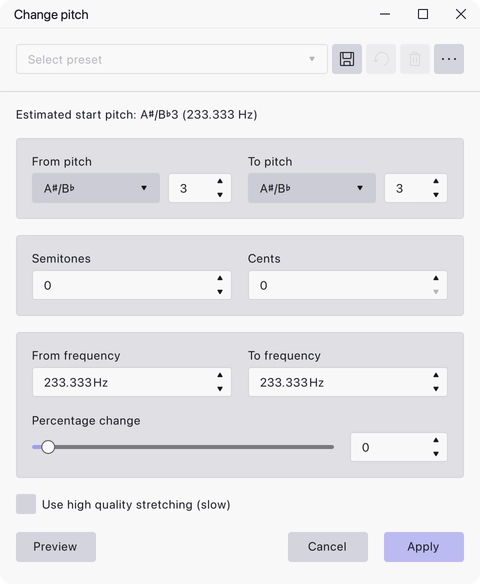
Change pitch moves the selection up or down in pitch while leaving its duration alone — a vocal can be transposed into a different key without the track getting shorter. You can state the shift as a musical interval, as two frequencies, or as a percentage; all three views stay in step with each other.
Where to find it
Effect → Pitch and tempo → Change pitch, with audio selected.
Controls
The dialog opens with an Estimated start pitch line at the top, giving the note, octave and frequency Audacity measured in the selection.
- From pitch — a note name and an octave number, describing where the audio starts. It is filled in from the estimate.
- To pitch — a note name and an octave number, describing where you want it to end up.
- Semitones — the shift as a whole number of semitones.
- Cents — the remaining fraction of a semitone, in hundredths.
- From frequency and To frequency — the same shift expressed as a starting and finishing frequency in Hz.
- Percentage change — the shift as a percentage, on a slider with a matching numeric field.
- Use high quality stretching (slow) — switch to the slower, higher-quality stretching algorithm.
Notes
The pitch estimate is a starting point, not a verdict: it comes from analysing the selection, and on material that is not a clear sustained note it can land on the wrong octave. Correct From pitch by hand if it looks wrong, since every other field is measured from it.
Because the four ways of stating the shift are linked, you can type into whichever one suits the job — semitones for a musical transposition, frequency for tuning to a reference — and read the answer off the others.
Last updated