Toolbars
Playback meter
The output meter, the playback volume, and the meter's settings.
The output meter, the playback volume, and the meter’s settings.
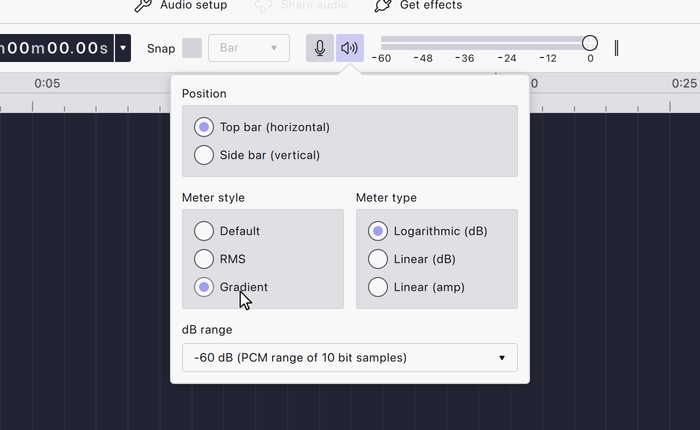
Opens the playback volume settings, which set how loudly Audacity plays back. The master meter sits alongside it, showing the level going out.
Playback volume only affects what you hear: it does not change the audio in your project, and it is not applied to anything you export.
The meter turns red when the signal clips.
The volume menu can also switch the meter between a horizontal meter in the toolbar and a vertical one shown alongside the tracks.

Meter style
Meter style sets how the bar is drawn:
- Default: a single solid bar showing the peak level.
- RMS: the average (RMS) level as a solid bar, with the peak level shown in a lighter shade beyond it. The average corresponds more closely to loudness as heard; the peak is what clips.
- Gradient: the bar is coloured green through yellow to red as the level rises.
Meter type
Meter type sets the scale the level is read against:
- Logarithmic (dB): decibels on a logarithmic scale. This matches how loudness is heard, and is the default.
- Linear (dB): decibel values spaced evenly along the meter.
- Linear (amp): raw sample amplitude from 0 to 1.
dB range
For the decibel meter types, dB range sets the quietest level the meter shows, from -36 dB (a shallow range for high-amplitude editing) down to -145 dB (the PCM range of 24 bit samples). The steps in between correspond to common sample bit depths; -120 dB is the approximate limit of human hearing.
It is present in every workspace.
Last updated