Effects
Limiter
Run the Limiter live on a track during playback instead of applying it to the audio.
This is the same effect as Limiter in the Effect menu, added to a track’s effect stack instead of applied to its audio. The controls and what they do are identical — that page has the reference — but nothing is written back to the track: the limiting happens as the project plays.
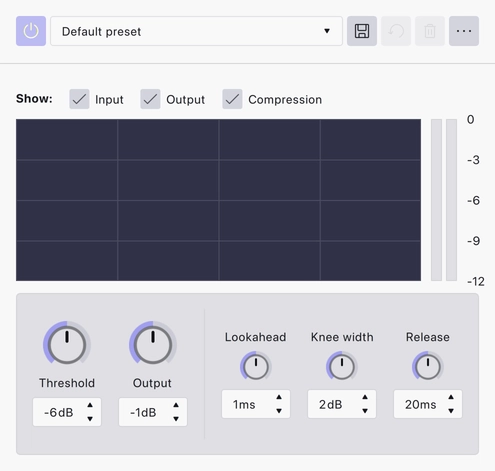
Where to find it
Click the Effects button across the bottom of the track’s control panel, or press E, then Add effect and choose Limiter.
Working with it
Because the audio is untouched, everything stays adjustable. Change the threshold while the project is playing and you hear the result immediately; bypass the effect with its power button to compare against the original; move it above or below the other effects on the track to change where in the chain it sits; take it off the stack and the track is exactly as it was.
The limiting is included when you export, so there is no step at which you have to apply it.
Notes
A limiter is normally the last thing in a chain, since its job is to catch whatever the effects before it produced. Keeping it last on the stack is usually right.
For catching peaks in the finished mix rather than on one track, add it to the Master effects section at the bottom of the effects panel, which processes every track together.
Used this way the Limiter shows a metering panel above the knobs, so you can watch how much the peaks are being held back while the project plays. Applied destructively from the Effect menu there is nothing to meter and the panel is not shown.
See Realtime Effects for the stack as a whole.
Last updated