Clips
Selecting and moving
Picking clips and time ranges, and dragging clips between tracks.
Selecting clips
Click a clip’s header to select it, or double-click in its body. A selected clip shows its handles.
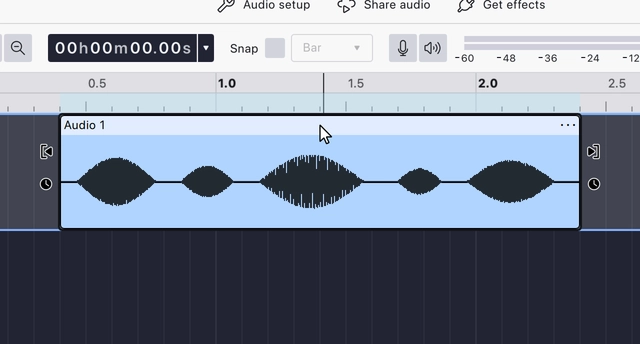
With a clip selected, holding Shift and clicking another clip on the
same track selects both, along with every clip between them. Holding
Time range selections
A time range selection selects audio data directly, without regard to clip boundaries: click in the waveform and drag left or right. The selected stretch is highlighted across the track, and dragging downwards as well selects the same stretch on every track passed over.
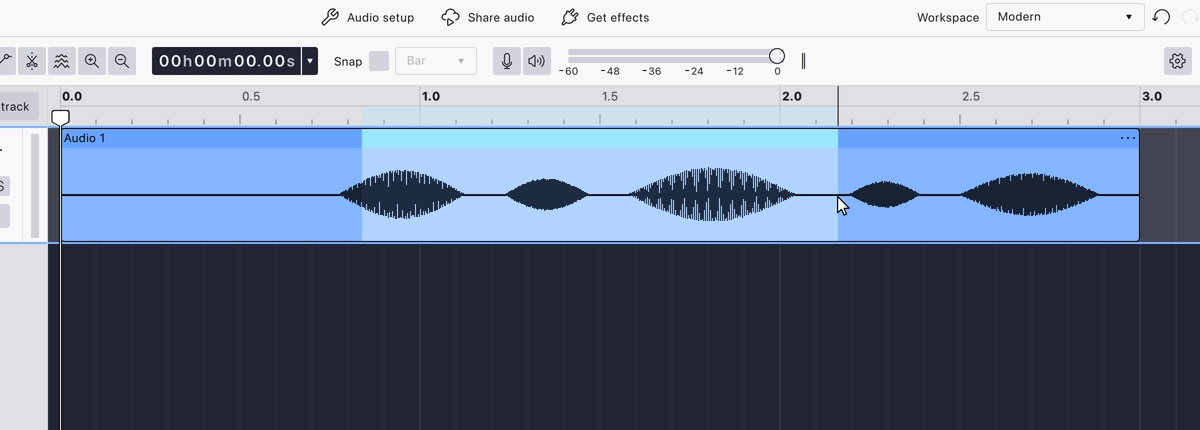
- Holding Shift and clicking extends the current selection to the point clicked.
- Double-clicking an empty part of a track selects all of that track’s audio.
- Select → Select all,
Ctrl+A , selects everything in the project.
Moving clips
Dragging a clip by its header moves it: along its track, onto another track, or into the empty space below the tracks, which creates a new track to hold it. Dragging inside the body does not move the clip; it makes a time range selection.
Dropping a clip on top of another is allowed: the clip underneath is overwritten where they overlap. Undo restores it.
With snapping on, moved clips land on the chosen grid.
Last updated