Effects
Normalize
Set the peak level of the selection, and optionally remove any DC offset.
Normalize applies one gain change so that the loudest peak in the selection lands on a level you choose. It can also re-centre audio that is sitting off the zero line. Use it to bring a recording up to a consistent peak level before further editing.
Where to find it
Effect → Volume and compression → Normalize, with audio selected.
Controls
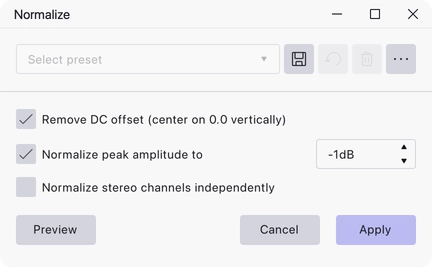
- Remove DC offset (center on 0.0 vertically) — shift the waveform so its average sits on zero. On by default.
- Normalize peak amplitude to — set the highest peak in the selection to this level, in dB. The value cannot be above 0 dB; the default is −1 dB.
- Normalize stereo channels independently — normalise the left and right channels separately rather than applying one gain to the pair. Off by default, and available only when peak normalisation is switched on.
Notes
At least one of the two checkboxes has to be ticked before the effect can be applied — with both off there is nothing for it to do.
DC offset shows up as a waveform whose centre line is visibly above or below zero. It wastes headroom and can cause clicks at clip boundaries, which is why removing it is on by default.
A target of −1 dB rather than 0 dB leaves a little headroom, which is safer for material that will later be encoded to a lossy format.
Normalising the channels independently changes the stereo balance, so leave it off for ordinary stereo material.
If you only want the DC correction and nothing else, the separate Remove DC offset effect does that on its own.
Last updated