Effects
Crossfade Tracks
Fade one track out while another fades in, across the same time range.
Crossfades between two tracks that overlap in time: one is faded out over the selection while the other is faded in. Select the same time range in both tracks and apply the effect once.
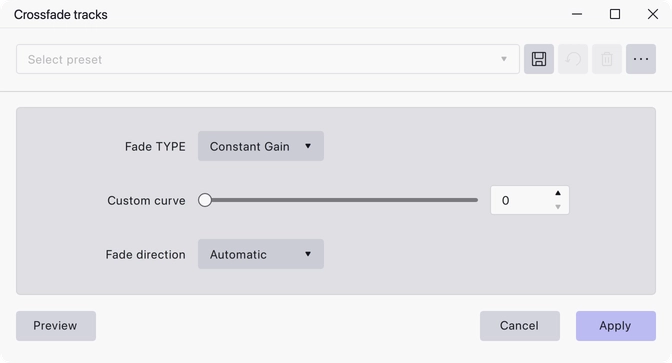
Where to find it
Effect → Fading → Crossfade tracks.
Controls
- Fade TYPE — Constant Gain, Constant Power 1, Constant Power 2 or Custom Curve. Constant Gain is the default.
- Custom curve — 0 to 1, default 0. Sets the curvature used by the Custom Curve type; roughly constant power at the 0.5 setting.
- Fade direction — Automatic, Alternating Out / In, or Alternating In / Out. Automatic is the default.
Notes
On Automatic, each track is judged on its own: if the selection lies closer to the start of that track’s audio it fades in, and if it lies closer to the end it fades out. The two alternating settings decide instead from the track’s position in the project, so tracks alternate between fading out and fading in down the stack.
Constant Gain keeps the summed level of the two tracks steady when the material is correlated; the Constant Power shapes suit unrelated material, where an equal-gain crossfade would dip in the middle.
Last updated