Tracks
Label Track Item
The control panel of a label track.
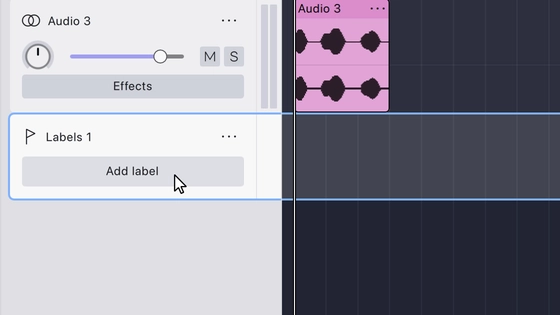
A label track holds labels rather than audio, and its control panel is correspondingly short. It carries the track type icon, the editable track name, the track menu button, and a full-width Add label button beneath them.
There is no volume slider, pan knob, mute or solo button, Effects button or level meter, because a label track produces no sound.
Double-click the track name to rename the track. Drag the bottom edge of the panel to change its height; collapse it far enough and the Add label button is hidden.
Right-click the panel, or use the menu button, to open the label track’s menu.
Add labels
Add label runs across the bottom of a label track’s control panel, and can
also be run with
Where the label lands depends on what the project is doing:
- While playing or recording, the label is placed at the current playback or recording position.
- Otherwise it takes the selected time range: a point label when nothing is selected, and a region label spanning the range when something is.
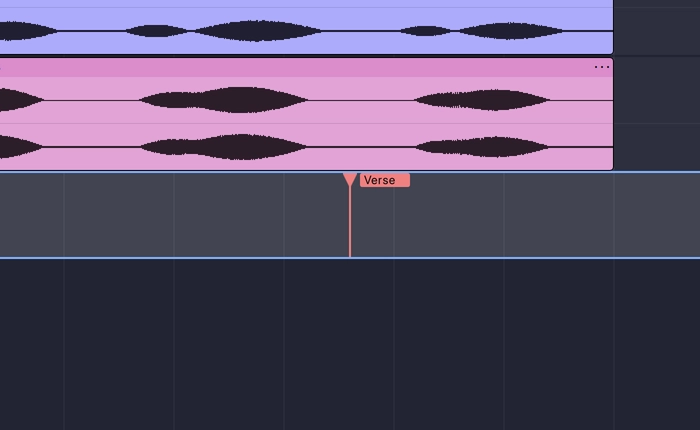
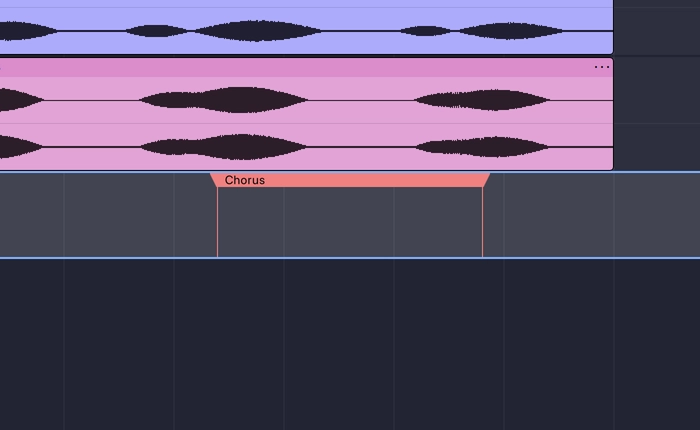
The button is hidden while the track is collapsed; the shortcut still works.
Labels are edited afterwards in the track itself rather than from the control panel.
Working with labels
A label is edited in the track itself:
- Rename a label by double-clicking its name, or right-click it and choose Rename label.
- Move a label by dragging its name tag along the track.
- Resize a region label by dragging either of its ends.
Right-clicking a label also offers Cut, Copy and Delete for the audio at the label, along with the same Cut and…, Paste and… and Delete and… variants as the clip menu.
The label editor
Show label editor opens a window listing every label in the project as a table: its track, text, start and end times, and, for spectral selections, low and high frequencies. Each cell can be edited directly.
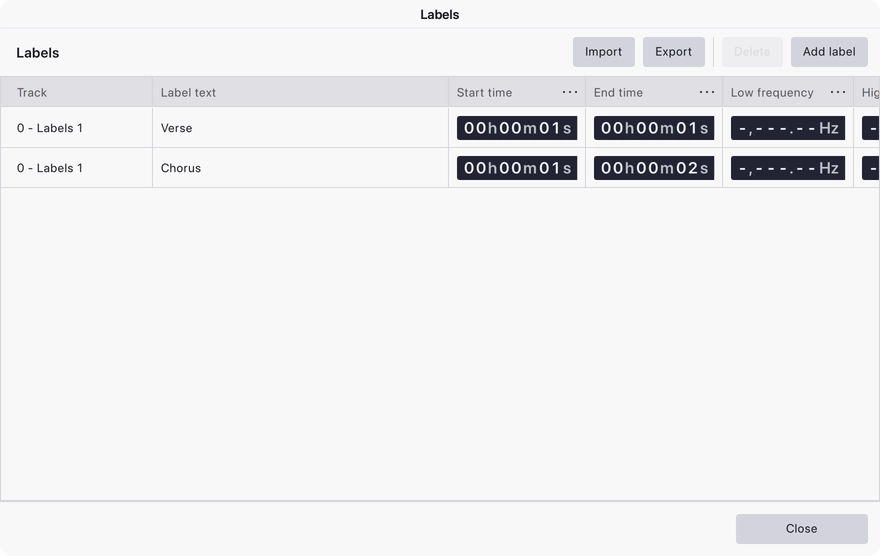
The editor also holds Add label and Delete, and Import and Export, which move labels in and out as text files.
Track options
A label track’s menu is opened the same way as any other track’s: with the
menu button beside the track name, by right-clicking the control panel, or —
with the track focused — with
It is much shorter than an audio track’s menu. Because a label track carries no audio, the audio-only entries are absent: there is no Track visualization, no Show vertical rulers, no Meters & monitoring, no channel commands, and no Format, Rate or Resample.
Rename, Duplicate and Delete
The label track menu opens with the same three commands as any other track, and they act on the track, not on individual labels.
- Rename puts the label track’s name into edit mode in the control panel.
- Duplicate makes a copy of the label track, with all of its labels.
- Delete removes the label track and every label in it.
There is no per-label entry in this menu. Individual labels are renamed and removed in the track itself rather than from the control panel — a newly added label goes straight into rename mode so you can type its text.
Renaming the track can also be started by double-clicking its name in the control panel.
Move track
Move track is a submenu of the label track’s menu, and holds the same four commands as it does for an audio track:
- Move track up — swap the track with the one above it.
- Move track down — swap it with the one below.
- Move track to top — send it to the top of the project.
- Move track to bottom — send it to the bottom.
Label tracks can also be reordered by dragging their control panel up or down, and none of the four commands has a default keyboard shortcut.
Position matters in practice: a label track sitting directly under the audio it annotates is easier to read than one at the bottom of a long project.
Track color
Track color is a submenu of the label track’s menu offering the same nine colours as an audio track: Blue, Violet, Magenta, Red, Orange, Yellow, Green, Turquoise and Cyan. The colour currently in use is ticked.
Colour is purely a display property and changes nothing about the labels themselves. It is stored per track, saved with the project, and the change is undoable.
Giving different label tracks different colours is a quick way to tell several sets of markers apart at a glance.
Export labels
Export labels is the last item in a label track’s menu. It opens the export labels dialog for that track, so its labels can be written out to a file — useful for handing timings to another application, or for keeping a plain-text record of where things happen in a project. The same command also appears under File → Export other → Export labels.
The command is dispatched for the track whose menu you opened, so exporting from a particular label track’s menu exports that track’s labels.
Last updated