Workspaces
Edit Workspaces
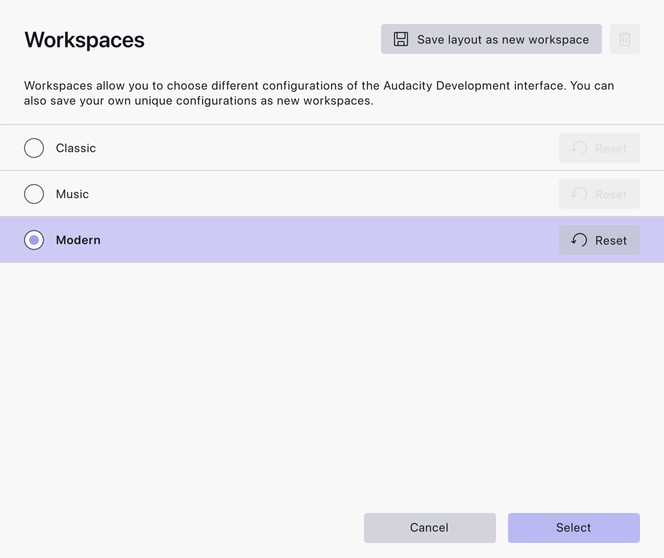
The Edit workspaces window — switch, rename, reset and remove workspaces.
Edit workspaces opens a window listing every workspace you have, built-in and your own, with a short explanation that workspaces let you choose different configurations of the Audacity interface.
Where to find it
From the workspace dropdown in the top right corner of the window, or from View → Workspaces.
What you can do
- Switch to any workspace in the list.
- Save layout as new workspace — see Creating New Workspaces.
- Remove a workspace you created. The three built-in workspaces — Classic, Modern and Music — cannot be removed.
- Reset a built-in workspace to its factory layout. Audacity warns that this cannot be undone before it goes ahead.
Notes
- A workspace remembers which toolbar buttons are shown and how the window is laid out. It does not remember global appearance settings such as the theme, accent colour or waveform display options — those stay the same whichever workspace you switch to.
- Tools → Reset configuration goes further: it clears app preferences and custom UI configurations, and deletes custom workspaces and shortcuts. It does not touch your projects.
Related
Last updated