Effects
Repair
Reconstruct a very short damaged fragment from the audio on either side of it.
Repair rebuilds a tiny stretch of damaged audio by interpolating from the samples surrounding it. It is meant for a single click, scratch or dropout that Click Removal has not caught — the sort of fault you have to zoom right in to see.
Where to find it
Effect → Noise removal and repair → Repair, with a very short selection. There is no dialog: the effect applies as soon as you choose it.
Notes
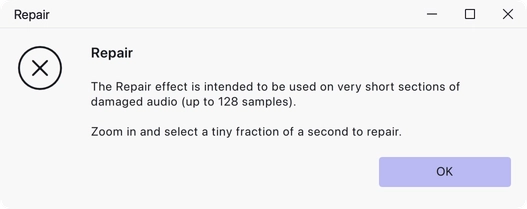
The selection may be at most 128 samples long. Select more than that and Audacity refuses to run, with a message asking you to zoom in and select a tiny fraction of a second. At a typical 44,100 Hz project rate, 128 samples is under three thousandths of a second.
Repair needs undamaged audio on both sides of the selection to work from, so it cannot fix a fault at the very start or end of a clip.
To use it, zoom in until you can see individual samples, drag a selection across just the damaged part, and apply. If the result is still audible, undo and try a slightly different selection rather than repeating the effect.
Last updated