Tools
Regular interval labels
Create a label track with labels placed at even intervals across a selection.
Creates a set of labels spaced evenly across the selection, numbered automatically. It saves placing labels by hand when you want regular markers — chapter points every five minutes, or a fixed number of equal sections to split a long recording into.
Where to find it
Tools → Regular interval labels.
Controls
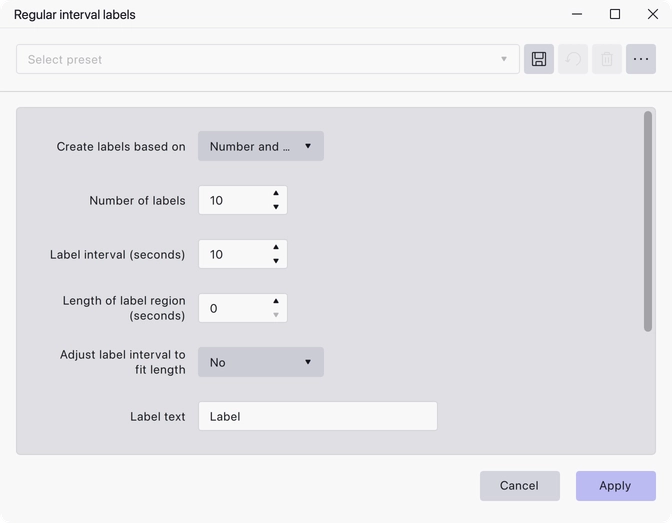
- Create labels based on — Number and Interval, Number of Labels, or Label Interval. Number and Interval is the default; the other two ignore whichever of the next two controls does not apply.
- Number of labels — 1 to 1000, default 10.
- Label interval (seconds) — 0.001 to 3600, default 10.
- Length of label region (seconds) — 0 to 3600, default 0. At 0 each label is a point; above 0 each label covers a region of that length.
- Adjust label interval to fit length — No or Yes. No is the default. Yes nudges the interval so the labels divide the selection evenly.
- Label text — the text each label carries. Default “Label”.
- Minimum number of digits in label — None - Text Only, or 1, 2 or 3 digits placed either before or after the label text. The default is 2 (Before Label).
- Begin numbering from — default 1.
- Message on completion — Details, Warnings only, or None. Details is the default.
Notes
The plug-in needs an audio selection to work from, because the labels are placed across whatever is selected. Select the region you want labelled first.
Zero-padding the numbers — the digits control — keeps labels in the right order when they are sorted as text, which matters if you later export the label track or use the labels to split into named files.
Last updated