Effects
Amplify
Change the level of the selection by a fixed amount, in decibels.
Amplify applies one fixed gain change to everything in the selection. It does not alter the balance between loud and quiet passages — the whole selection moves up or down together. Reach for it when a recording is simply too quiet or too loud.
Where to find it
Effect → Volume and compression → Amplify, with audio selected.
Controls
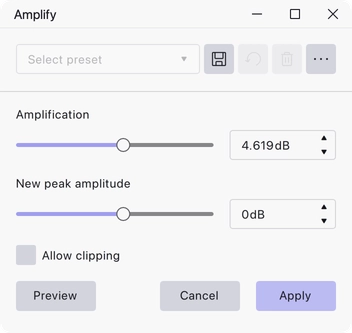
- Amplification — the gain change, in dB. Positive values make the selection louder, negative values quieter.
- New peak amplitude — the level the loudest sample in the selection ends up at, in dB. This and Amplification are two views of the same setting: changing one updates the other.
- Allow clipping — permit the result to go past full scale rather than being held below it.
Notes
The dialog opens with New peak amplitude set to 0 dB, so applying it unchanged raises the selection until its loudest peak sits exactly at full scale. Audacity works out the required gain from the peak it measures in the selection, so the starting Amplification value differs from one selection to another.
With Allow clipping off, Apply is unavailable for any setting that would push peaks above full scale. Tick it if you deliberately want to drive the audio into clipping.
The effect needs a non-silent selection: if the selected audio is entirely silent there is nothing to measure and nothing to amplify.
Last updated