Effects
Truncate Silence
Find the silent gaps in a recording and shorten them automatically.
Truncate Silence looks through the selection for passages quiet enough and long enough to count as silence, then shortens each one. It is the quickest way to tighten a spoken-word recording full of long pauses, or to close the gaps between takes, without cutting each one by hand.
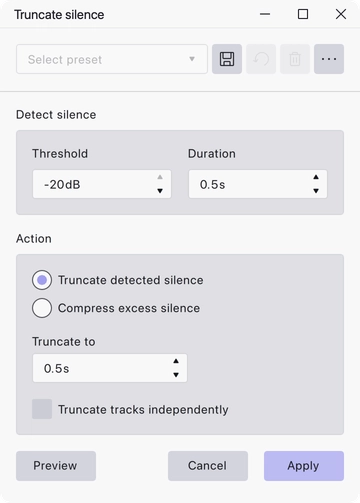
Where to find it
Effect → Special → Truncate silence, with audio selected.
Controls
The dialog is in two parts: what counts as silence, and what to do about it.
Detect silence
- Threshold — the level below which audio counts as silence, in dB. Range −80 to −20 dB, default −20 dB.
- Duration — how long a quiet passage has to last before it is treated as silence, in seconds. Minimum 0.001 s, default 0.5 s.
Action
Choose one of two actions with the radio buttons:
- Truncate detected silence — cut every detected silence down to a fixed length. Truncate to sets that length in seconds, default 0.5 s.
- Compress excess silence — shorten every detected silence by a proportion rather than to a fixed length, so longer pauses stay longer than short ones. Compress to sets the percentage that is kept, range 0 to 99.9%, default 50%.
Below the action is a checkbox — Truncate tracks independently or Compress tracks independently, depending on the action chosen. It is off by default. With it off, the same edits are made to every selected track so they stay in sync; with it on, each track is processed on its own terms.
Notes
Leave the independent checkbox off whenever the selected tracks have to stay aligned with each other — separate microphones on the same conversation, for instance. Turning it on will pull them apart.
The effect shortens the selection, so anything you had lined up against it afterwards will need checking.
Set Threshold by looking at the recording rather than guessing: it has to sit above the noise floor in the pauses but below the quietest speech, and a noisy recording may leave no room between the two.
Last updated