Skip to content

Clips

Split

Cutting one clip into two, with the split tool or the keyboard.

Split cuts a clip in two at a chosen point. Each half becomes a clip of its own, so one can be deleted, moved or trimmed without touching the other.

The split tool

The split tool lives in the Tools toolbar, behind the scissors button, and toggles with S. While it is on, a guideline follows the pointer across the clip, showing where the cut will land.
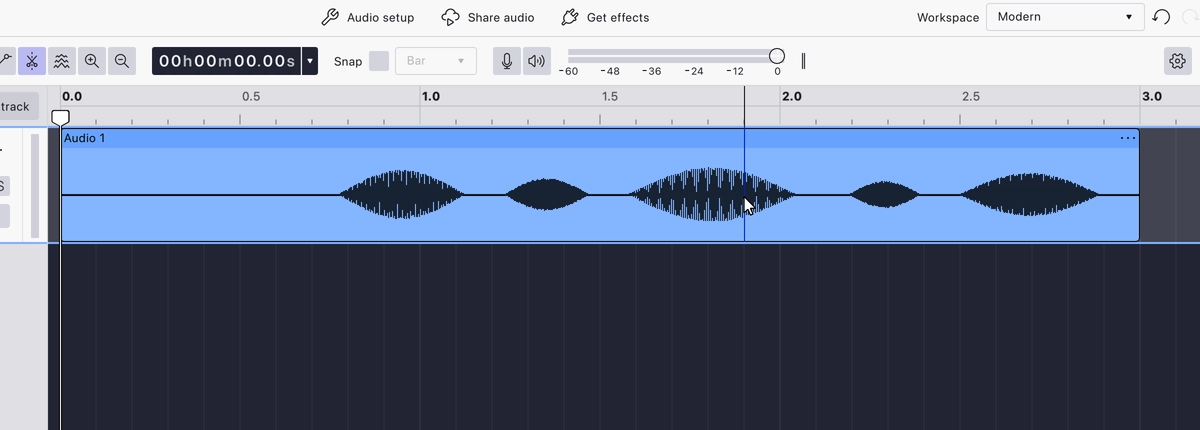
The split tool switched on, with its guideline running through the clip at the pointer

Clicking applies the split. The portion left of the cut is selected, ready to delete. Pressing S again switches the tool back off.
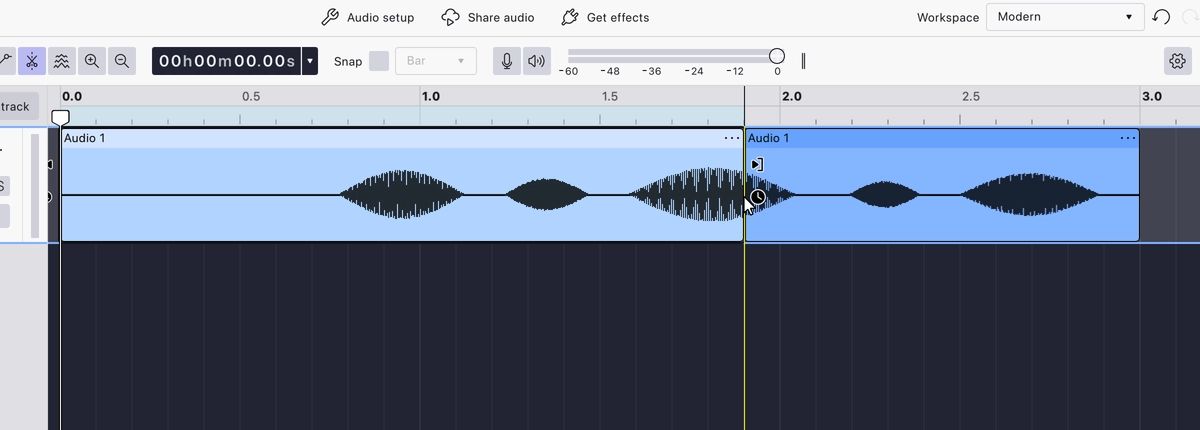
The clip split in two at the guideline, with the left portion selected

Splitting from the keyboard

Ctrl+I makes the same cut without the tool: at the edit cursor it splits once, and with a time range selection it cuts at both edges of the selection, leaving the selected stretch as a clip of its own.

Last updated