Tools
Sample data export
Write the sample values of a selection out to a text, CSV or HTML file.
Writes the individual sample values of the selected audio to a file, as numbers you can read or load into something else. It is an analysis and teaching tool rather than an editing one — for checking exactly what is in a waveform, or for taking Audacity’s data into a spreadsheet or a script.
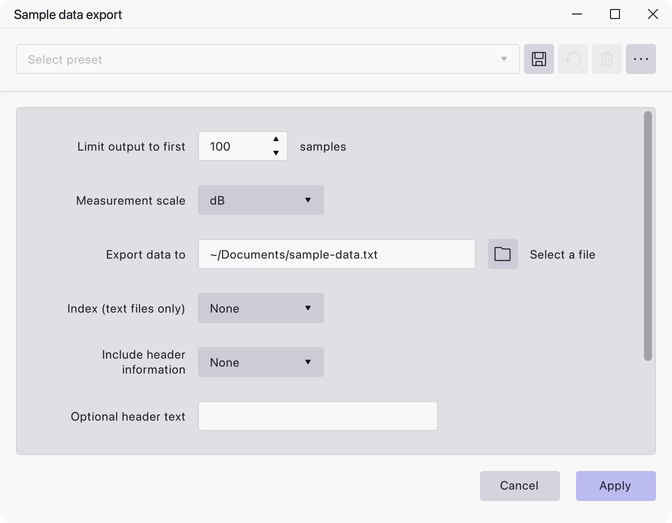
Where to find it
Tools → Sample data export.
Controls
- Limit output to first samples — 1 to 1000000, default 100. Sample data files get large quickly, so the export is capped.
- Measurement scale — dB or Linear. dB is the default.
- Export data to — the file to write. The default name is
sample-data.txt; the picker also offers CSV and HTML. - Index (text files only) — None, Sample Count or Time Indexed. Adds a sample number or a timestamp beside each value.
- Include header information — None, Minimal, Standard or All. None is the default.
- Optional header text — free text added to the header.
- Channel layout for stereo — L-R on Same Line, Alternate Lines, or L Channel First. L-R on Same Line is the default.
- Show messages — Yes, Errors Only or None. Yes is the default.
Notes
The file format follows the extension you give it: .txt for plain text,
.csv for a spreadsheet, .html or .htm for a table you can open in a
browser. The index and channel-layout options only apply to plain text
output.
Because the sample limit counts samples rather than seconds, even the maximum of a million samples is only about 23 seconds at 44100 Hz — this is meant for looking closely at short passages.
Last updated