Workspaces
Creating New Workspaces
Arrange the window the way you want it, then save that arrangement as your own workspace.
A new workspace is always made from the layout you are currently looking at. Set the window up first, then save it.
Setting up the layout
- Use the cog button at the right-hand end of the Transport Toolbar — Customize toolbar — to show or hide individual toolbar buttons.
- Move the Transport Toolbar, and show or hide panels, until the window suits the work you are doing.
Saving it
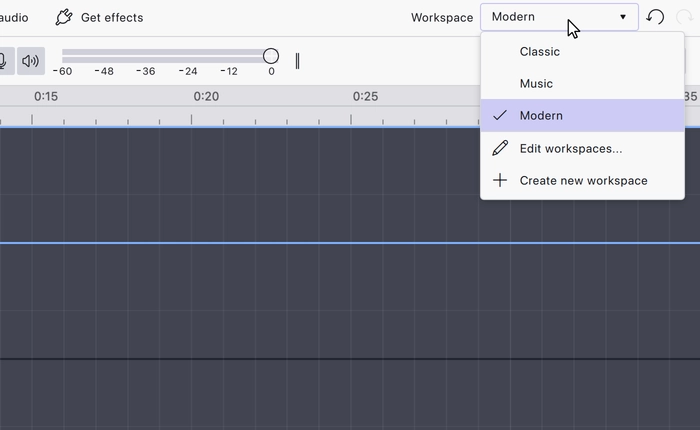
Choose Create new workspace from the workspace dropdown in the top right corner of the window, or open Edit workspaces and choose Save layout as new workspace. Audacity asks for a Workspace name and adds it to the list.
Names must be unique and cannot be empty; Audacity says so and asks for another name if you pick one that is already in use.
Your new workspace then appears in the workspace dropdown and in View → Workspaces alongside Classic, Modern and Music, and can be removed again from Edit workspaces.
Notes
- A new workspace starts as a copy of the layout in front of you, including the built-in workspace you were using at the time.
- Workspaces do not carry global appearance settings such as the theme, accent colour or waveform display options.
Related
Last updated