Clips
Trim and stretch
The two pairs of handles on a selected clip, and what each does.
A selected clip carries two pairs of handles at its edges: the top pair trim, the lower pair stretch.
Trim
The top handles trim. Hovering one changes the pointer to the trim cursor; dragging the clip’s left or right edge inwards shortens it.
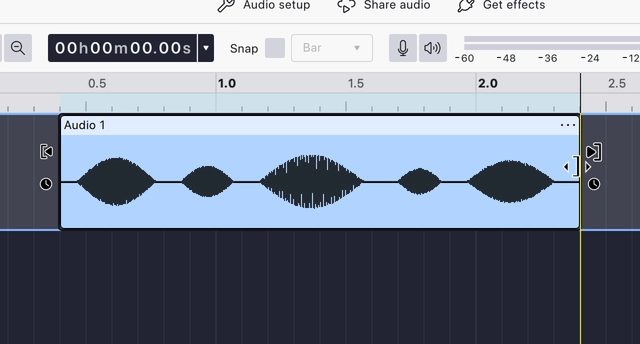
Trimming is non-destructive. The trimmed audio is kept past the clip’s edge, and dragging the edge back out restores it.
Trim clip does the reverse job from a selection: it keeps the selected stretch and trims away the rest of the clip.
Stretch
The lower handles, marked with a clock, change the clip’s speed. Hovering one changes the pointer to the stretch cursor; dragging stretches or squeezes the clip, so it plays slower or faster.
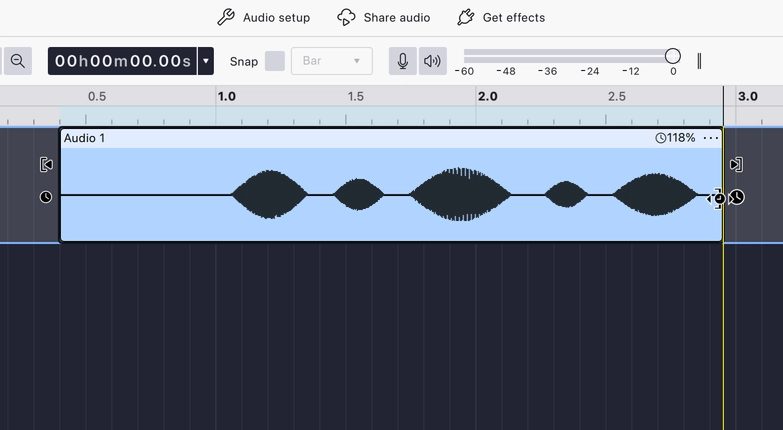
A clip whose speed has been changed shows a badge in its top corner with the current percentage. Clicking the badge opens a field for typing an exact value.
Pitch
Pitch is changed from the clip’s menu: right-click the clip, or open its ⋯ menu, and choose Open pitch and speed dialog. It shifts pitch in semitones and cents, and its Optimize for voice option preserves vocal resonances when shifting speech or singing.
Last updated