Tracks
Track Control Panel
The strip at the left of every track, holding its name, its controls and its menu.
Every track in a project has a control panel down the left-hand side of the Tracks area. The panel is where the track is named, where its playback controls live, and where its menu is opened from. Above the panels sits a Tracks title bar with the Add track button.
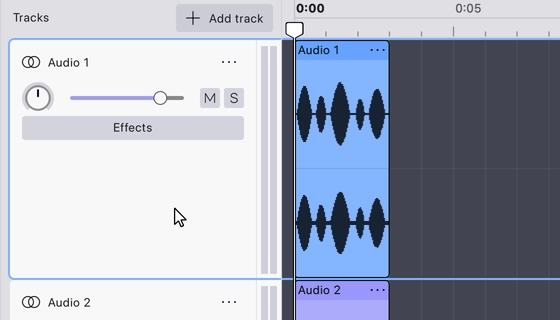
All panels share the same three elements: an icon showing the track type, an editable track name, and a menu button. What appears below that depends on the track type — an audio track adds pan, volume, mute, solo, an Effects button and level meters, while a label track adds a single Add label button.
Working with the panel
- Double-click the track name to rename it in place.
- Drag the bottom edge of a panel to change the track’s height. Reduce it far enough and the track collapses: mute and solo move up beside the name and the remaining controls are hidden.
- Drag a panel up or down to reorder the tracks.
- Right-click anywhere on the panel, or use the menu button beside the name, to open the track’s menu.
Add track
Add track sits at the right of the Tracks title bar, above the track control panels. Clicking it opens a small popup offering three track types:
- Mono — a single-channel audio track.
- Stereo — a two-channel audio track.
- Label — a track that holds labels rather than audio.
Choosing one creates the track immediately and closes the popup. Clicking Add track again while the popup is open closes it.
The same three track types can be created from the Tracks menu:
New mono track — which
also has the default shortcut
- Audio Track Item The control panel of a mono or stereo audio track.
- Label Track Item The control panel of a label track.
Last updated