Tracks
Vertical Rulers
The per-track scale down the right-hand edge of the tracks area, and how to change its format.
The vertical rulers are a narrow strip down the right-hand edge of the tracks area. Each audio track gets its own ruler, lined up with that track’s height, giving you a scale to read the waveform against. Label tracks have no ruler.
They are hidden by default. Turn them on with View → Show vertical rulers, or by right-clicking the timeline ruler. The setting applies to the whole application, not to one project.

What the rulers show
For a track shown as a waveform, the ruler is an amplitude scale. For a track shown as a spectrogram, it is a frequency scale instead. A track showing both views gets both, stacked to match, and a stereo track gets one scale per channel.
Changing a ruler
Click a waveform ruler to open its options:
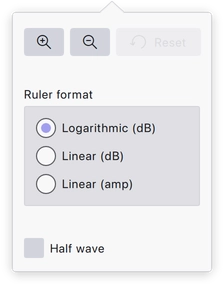
- Zoom in, Zoom out and Reset — change the vertical zoom of that track’s waveform, or return it to the default.
- Ruler format — choose between Logarithmic (dB), Linear (dB) and Linear (amp).
- Half wave — show only half of the waveform rather than both sides of the centre line.
The choices are made per track and saved with the project.
Last updated