Toolbars
Snapping
Snap edits, clips and selections to a grid.
Snap edits, clips and selections to a grid.
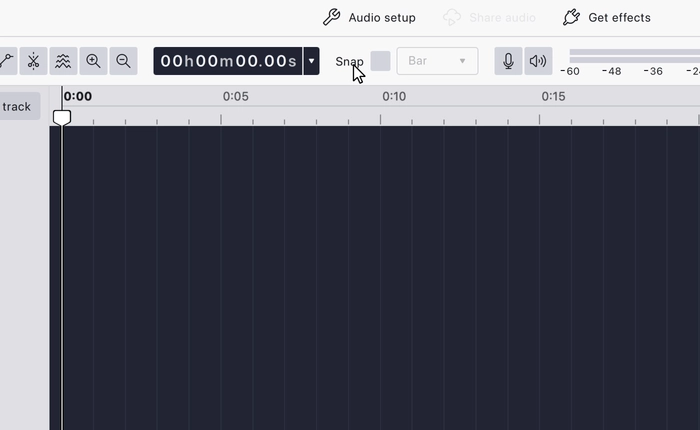
Controls whether edits snap to a grid, and how fine that grid is. Two controls sit side by side in the Tools toolbar: a Snap toggle and a subdivision button showing the grid currently in use.
- Snap: whether snapping applies at all.
- Subdivision: which grid it snaps to. This button is greyed out while snapping is off.
With snapping on, dragging a clip, moving a selection edge or positioning the cursor lands on the nearest grid line rather than an arbitrary point. That’s what makes edits line up with a beat or a whole second instead of landing a few samples out.
Clicking the subdivision button opens the grid menu. Musical divisions are at the top, and the other units are grouped into submenus below.
Musical: Bar, 1/2, 1/4, 1/8, 1/16, 1/32, 1/64, 1/128. A separate Enable triplets option applies to whichever of these is selected.
Musical divisions follow the project’s Tempo and Time Signature, so changing either moves the grid.
Seconds samples: Seconds, Deciseconds, Centiseconds, Milliseconds, Samples.
Video frames: Video Frames (24 fps), NTSC Frames (29.97 fps), NTSC Frames (30 fps), PAL Frames (25 fps).
CD frames: CDDA Frames (75 fps).
Last updated